
In my first post of 2026, I set myself a goal: downgrading my iCloud Plan.
Here is the translated extract from that post, which was initially written in French:
Another goal I would like to achieve is to downgrade my iCloud plan. I am currently subscribed to the 2 TB plan, which costs me €9.99 per month, and I would like to downgrade to the €0.99 one for 50 GB of storage. To do so, I will need to do some cleaning and sorting among my current 600 GB of data (including a lot of photos and videos), and copy them to external hard drives (until I can invest in a NAS, which is another project of mine).

For the record, I subscribed to the 2 TB plan in May 2019. I paid €9.99 for 83 months in a row, for a total of almost €830 (about US$980). That’s a lot of money. I mean, the service offered by iCloud is useful, and I understand some people are happy to pay for it each month. But I didn’t want to continue to pay that much, especially knowing that for all those years, I was using only about one third of the 2 TB I paid for.
Anyway, in April, I decided to tackle that project. I set up a few external hard drives and started digging into my iCloud Storage.
Photos in iCloud: a gilded cage
Photos is a great app. Combined with iCloud storage, it allows you to keep and archive tons of photos and videos, including several useful metadata such as the date and location of a shot, people and pet names… in a sleek interface.
But I reached a point where I was stuck and locked in the Apple gilded cage. After about 15 years of photos and videos, I had more than 18,000 photos and 2,900 videos in the cloud, which was a bit more than 200 GB to deal with.
My initial goal was to retrieve my photos and videos as regular files, outside the Photos app. It was nearly impossible. I could export photos and videos from the app, but it was slow, buggy if I selected too much content to export at once, and once copied, my files would lose all the metadata (very annoying, especially the date of creation).
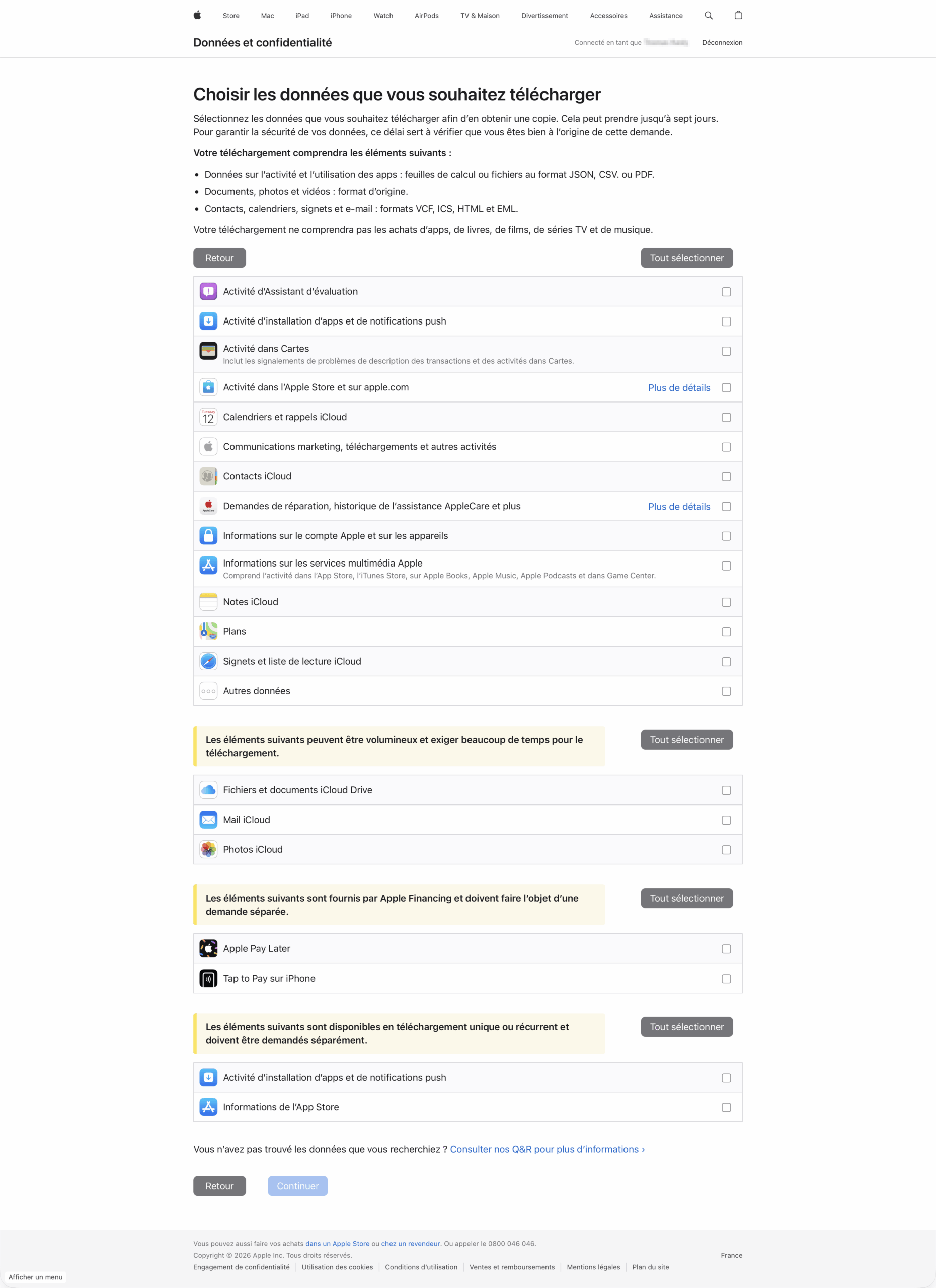
I also tried to retrieve all my photos and videos at once, through the Privacy section of the Apple website. It indeed allowed me to download multiple heavy zip files with all my content, but it was a mess: no more metadata, the file naming was illogical and weird and all my photos and videos were chronologically mixed.
So, to simplify the task and be able to navigate through my photos and videos without tearing my hair out, I found another way: I downloaded the entirety of my library on my Mac (for which I had to make room) and I backed up to two separate hard drives my .photoslibrary file.

I still have to use the Photos app to browse my photos and videos, but at least it works, and it allowed me to free up a lot of space on my iCloud plan.
Once my Photos library was backed up, I made a radical choice: I wiped out all of my photos and videos from my iPhone. In a way, it was kind of liberating. Dealing with that much content sometimes felt overwhelming.
Since then, I try to keep only the content I find meaningful, and I delete as soon as possible the useless photos, videos and screenshots I used to mindlessly accumulate. Regularly, I also take time to copy my photos and videos to my local hard drives not to depend anymore on the Photos app.
Well, that was something! But now that I managed to deal with my photos and videos library and freed hundreds of GB, I still needed to tackle my other files in iCloud Drive, plus that surprisingly large 40 GB backup of my iPhone.
iCloud Drive: download, wait, copy, repeat
I had more than 360 GB of files on my iCloud Drive. A lot of images, audio and video files, and various documents. Sometimes, I am a bit of an archivist, a data hoarder, and I thought it would be handy to be able to have access to very old files from anywhere, with my phone. In reality, it practically never happened, and I can just as well have all those files on external hard drives.
Most of my iCloud Drive files were, like my photos, in the cloud, that is to say not on my computer but on Apple’s servers. So, I had to download my files manually in the Finder. It took ages. Sometimes, the download was stuck for no reason. I had to let my computer stay awake for a few days and nights before being able to download locally and move, in batches, the 360 GB of files. I also took this opportunity to delete a lot of useless files.
The 40 GB iPhone backup
This one was easy to deal with. I was just wondering how my iPhone backup could take that much storage. In fact, I discovered that my backup was including my Doppler library. Doppler is my music player, which I use to listen to my music stored on my iPhone (more about this on my post “Listening to music the 2000s way: one year later”). I just had to remove Doppler from my iPhone backup, and now it weighs about 2 GB.
The other stuff
To complete that cleaning session, I also:
- Deleted a bunch of photos and videos related to WhatsApp, that were also taking a lot of space.
- Got rid of almost 15 years of iMessage data, nearly 20 GB I totally forgot about. Old messages, attachments, that were taking so much space. I removed everything and chose 30 days of message history only, instead of keeping everything indefinitely.
And, finally, step by step and in a few days, I managed to clear out a lot of space.
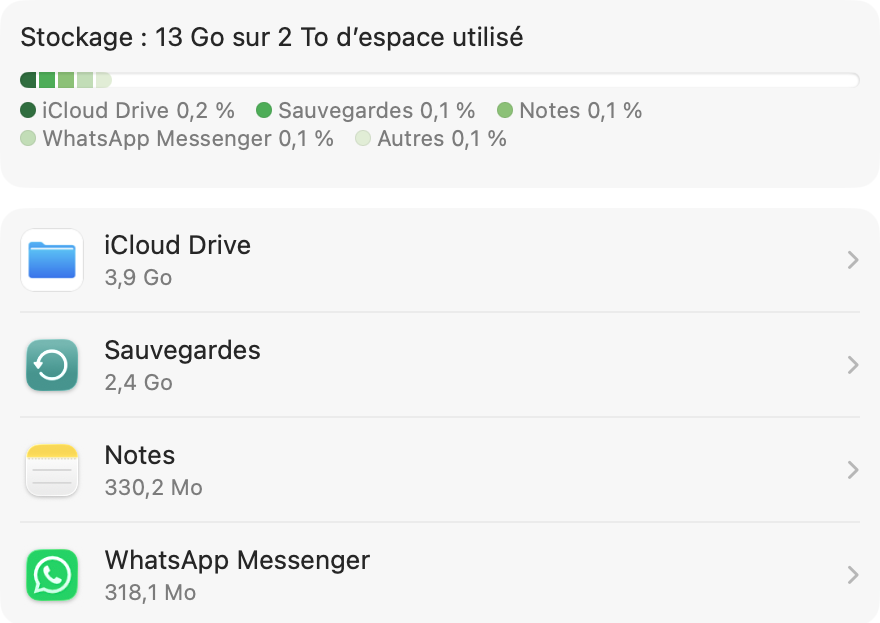
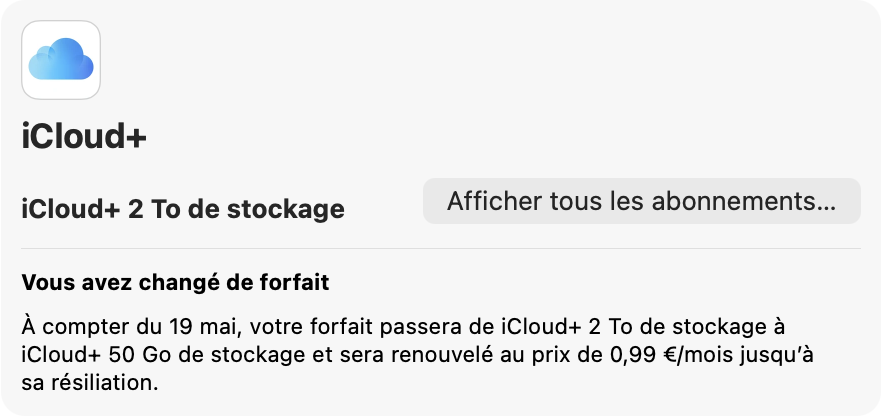
Enough to reach my goal and downgrade my iCloud plan to the 50 GB one at €0.99 a month, which will be effective starting May 19th.
Closing thoughts
That was quite a journey. It was not that difficult to do, but it required organisation and especially a lot of time.
I am satisfied that I managed to complete that objective and, perhaps more surprisingly, I feel kinda relieved. Clearing and sorting out digital stuff has pretty much the same effect on me as doing it with physical things. It clears my mind (in addition to reducing my expenses). There was something liberating, almost cathartic, to go through years of files, to sort them out, delete old useless stuff, copy and organize them on hard drives… to finally have a clean and almost empty iCloud Drive and photo library on my iPhone.